Links

Showing posts with label MOBILE. Show all posts

Sunday, August 8, 2010

Quickoffice offers free updates for select Nokia Eseries devices

Good news for all Nokia E Serie users!
Quickoffice, Inc., the leading global provider of mobile office productivity software, today announced it will be offering free upgrades to the latest version of Quickoffice for users on certain Nokia Eseries phones. Currently this program includes the Nokia E51, E52, E55, E63, E66, E71, E72, E75 and E90 devices.
Starting today, users of the above devices can download Quickoffice 6 as a free upgrade via Quickmanager®, Quickoffice’s secure on-device, e-commerce portal. Quickoffice 6 includes more advanced document viewing and editing functionality of Microsoft Office 2007 documents, ZIP file support, password-protected file handling, Excel 2007 chart viewing and multiple usability enhancements. Subsequent software updates released by Quickoffice for these select devices will also be available on a continual basis, including PowerPoint 2007 format support. Quickoffice 6 will initially only be available in English and a fully localized update will follow in the near future.
“Through our long-running partnership with Nokia, most S60 users have already benefited by receiving Quickoffice on their devices as part of their phone’s initial firmware, providing users with essential viewing and editing functionality of Office documents,” Gregg Fiddes, VP of sales and strategic partnerships for Quickoffice. “Recently, we’ve been working with Nokia to provide these S60 users with an easy and reliable way to update their Quickoffice software. Now, through Quickmanager, they can easily access the latest version and begin utilizing these new enhancements and feature improvements we’ve developed.”
To learn about the latest product updates, visit http://www.quickoffice.com
Source: Quickoffice

RESET Mobile Security CODE

Now Its not A BIG Problem…..
PC + cable CA 53
1.PC suite: downloads:
CLICK HERE FOR DOWNLOAD
2.nemesis service suite:
CLICK HERE FOR DOWNLOAD
Follow These Steps One by one
You have done it;
NOW U R NEW code: 12345

Forgot the Nokia Security Code? You can regain the code back or reset to default settings.

I noticed a lot of Nokia phone users forgot the security code and having hard time figuring out how to reset the code to default settings. Now you can stop the headache because regain or reset the code is easy on BB5 phones. Yesterday I wrote the step by step tutorials regarding this on the Zedge forums after reading the problem of the Zedger is having. So I decided to post this on my blog as well. Hope the tutorials help.  Any question about this are welcome. Now, let’s start on how to regain your forgotten security code back.
Tools Required :
Nemesis Service Suite (NSS)
- Nokia PC Suite
- Data cable
Regain Your Security Code
Steps:
1. Install Nokia PC Suite
2. Install Nemesis Service Suite (NSS)
3. Connect your phone to your PC with data cable. If the phone prompts, choose default mode or PC Suite mode (DON’T OPEN PC SUITE)
4. Open Nemesis Service suite (NSS)
5. Click scan for new devices button (on top right corner of NSS)
6. Click Phone Info button.
7. Click Scan button.
8. Click Permanent Memory tab.
9. Click Read button.
10. It will read the permanent memory file and save it on the disk at following path.
C:\Program Files\NSS\Backup\pm\.pm
11. Open the .pm file using Notepad.
12. Now scroll until field [308], and on the 5th Record (5=) your security code is saved at there.
13. Like 5=31323334350000000000 (Example)
14. Abandon the red fonts.
15. So, 12345 is your security code. (Example)
Now, here is how to reset your security code.
Reset Security Code
Steps:
1. Install Nokia PC Suite
2. Install Nemesis Service Suite (NSS)
3. Connect your phone to your PC with data cable. If the phone prompts, choose default mode or PC Suite mode (DON’T OPEN PC SUITE)
4. Open Nemesis Service suite (NSS)
5. Click scan for new devices button (on top right corner of NSS)
6. Click Phone Info button.
7. Click Scan button.
8. Under Power Mode, click Local and then click Change button. At this part, your phone should restart, and you should see the text Local mode across your phone screen.
9. Under Production Data Edit, click Read button. The textboxes should now contain values.
10. Check the Enable check box beside Product Code.
11. Click Write button.
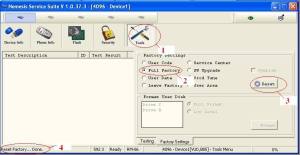
12. SelectTools button on top
13. Click Factory Settings tab
13. Tick Full Factory button and click Reset button.
14. Final step, go back to Phone Info and click Normal then Change.
Now your security code should be 12345.
Since you can have the forgotten code back, why you want to reset the code to default? LOL. :-)

Search This Blog